| Seu navegador | AppleWebKit |
| Versão do Navegador | 537.36 |
| Seu sistema operacional | |
| Agente de usuário | Mozilla/5.0 AppleWebKit/537.36 (KHTML, like Gecko; compatible; ClaudeBot/1.0; +claudebot@anthropic.com) |
Every time you visit a website, your browser sends along a surprising amount of information. Your browser type, version, operating system, screen size, language, even whether you have cookies enabled – all of it is visible to the site you're visiting.
Our What Is My Browser tool shows you exactly what your browser is sharing. No hidden data collection. No logging. Just a clear, honest readout of what your browser tells the world.
Enter the page. Get your browser details instantly. No tables, no clutter – just a simple list of information.
Most people never think about this. They open Chrome or Safari, type a URL, and move on. But that handshake between your browser and every website you visit carries a lot of data.
Advertisers use it to track you. Websites use it to decide whether to show you the mobile or desktop version. Security systems use it to block outdated or dangerous browsers. And sometimes, you just need to know what version of Firefox you're running because an extension stopped working.
That's where this tool helps.
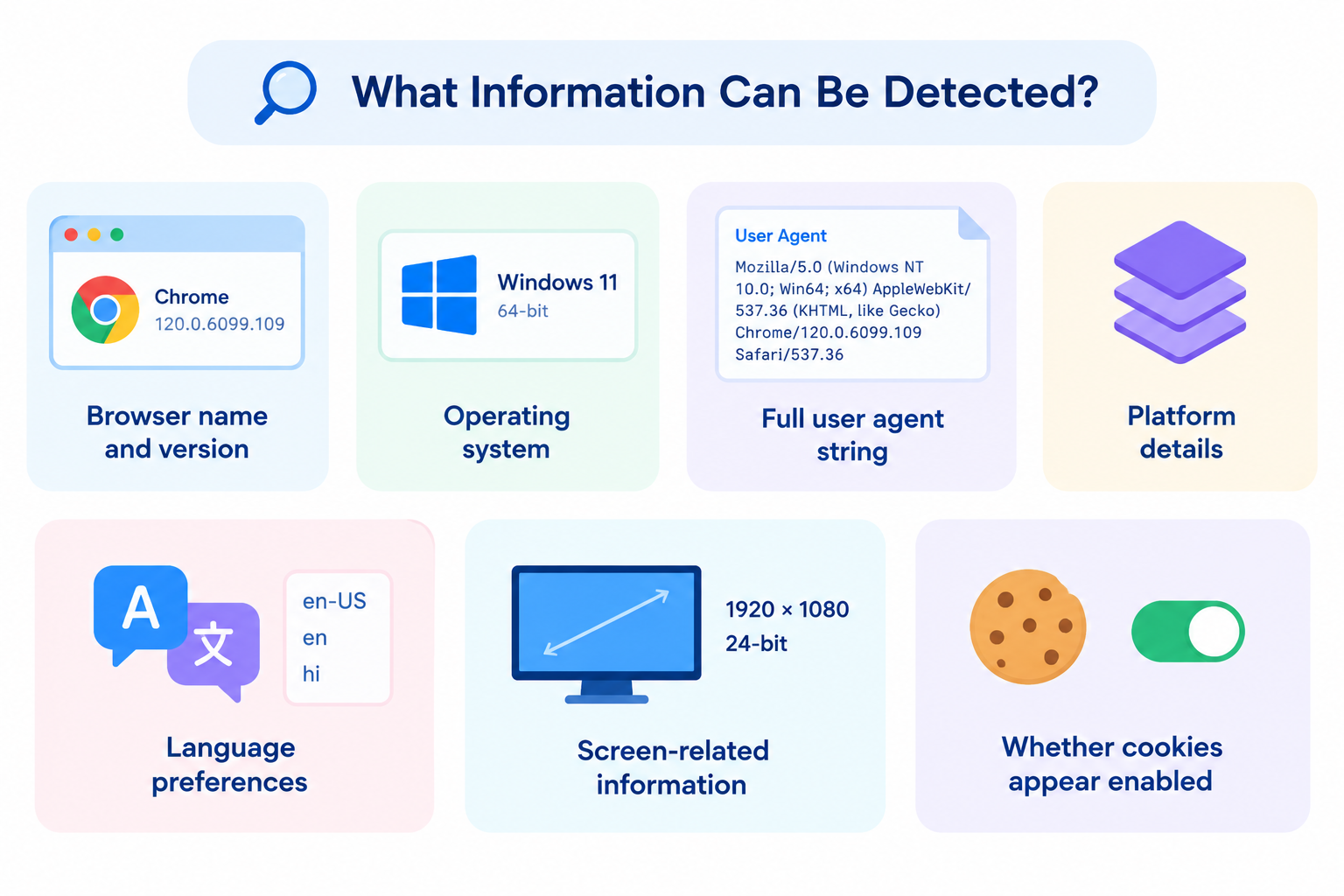
When you open the page, you'll see the following details – all derived from what your browser voluntarily sends:
Browser Name and Version – Chrome 122, Firefox 115, Safari 17, Edge 121, or something more obscure like Brave, Opera, or Vivaldi. The exact version number matters for compatibility checks.
Operating System – Windows 11, macOS Sonoma, Android 14, iOS 17, Linux, or ChromeOS. Sometimes even the exact build shows up.
User Agent String – This is the full text string your browser sends. It looks like gibberish, but it's the source of all the other details. We show it so advanced users can inspect it.
Screen Resolution – Width and height of your screen in pixels. Not the browser window size – the actual monitor or display resolution. This is how websites know if you're on a phone or a 4K desktop.
Color Depth – Bits per color channel. Usually 24 or 32. Almost never relevant, but we include it for completeness.
Languages – Your preferred language settings, like en-US (English, United States) or fr (French). Websites use this to serve translated content automatically.
Cookies Enabled – Yes or no. Some users disable cookies for privacy. This tool tells you if your setting is actually taking effect.
Platform – More specific than just OS: Win32, MacIntel, Linux x86_64, iPhone, iPad. Useful for debugging.
Plugins (optional) – If you allow it, we can list installed browser plugins. We ask permission first because plugin lists are very revealing.
Time Zone – Your system's time zone offset from UTC. Not always accurate if you use a VPN, but usually correct.
Step 1 – Open the What Is My Browser page on bingowebrabbit.com.
Step 2 – The tool loads instantly. No buttons to click. The information appears as soon as the page finishes loading.
Step 3 – Read the details. They're presented as plain text, line by line.
Example output:
Browser: Chrome
Version: 122.0.6261.129
Operating System: Windows 11
User Agent: Mozilla/5.0 (Windows NT 10.0; Win64; x64) AppleWebKit/537.36 ...
Screen Resolution: 1920 x 1080
Color Depth: 24
Languages: en-US, en
Cookies Enabled: Yes
Platform: Win64
Time Zone: America/New_York (UTC-5)
That's it. No fancy graphs, no tables, no export buttons. Just the facts.
Web developers – You're testing responsive design. You need to know the exact screen resolution and browser version. Our tool gives you that in two seconds.
Technical support – A user says "my website looks broken." You ask for browser and version. They don't know. Send them to this page. They read you the output. Problem solved.
Privacy enthusiasts – You want to see what data your browser leaks. Open this tool with your normal browser. Then open it again in a private window. Compare. Then try a different browser. You'll see how much information changes.
IT administrators – Before rolling out a new web application, check what browsers your employees actually use. Have them visit this page and send you the output. No manual polling of User‑Agent strings.
Normal users – You're trying to install a browser extension. The store says "requires Chrome version 120 or higher." You don't know your version. Open this tool. Read the number. Now you know.
The User Agent string is a long piece of text that browsers have sent since the early days of the web. Here's what a typical Chrome User Agent looks like:
Mozilla/5.0 (Windows NT 10.0; Win64; x64) AppleWebKit/537.36 (KHTML, like Gecko) Chrome/122.0.0.0 Safari/537.36
Why does it say Mozilla and AppleWebKit? History. Browsers pretend to be other browsers for compatibility reasons. Our tool parses this mess and extracts the real browser name and version.
You don't need to understand the User Agent string yourself. That's what the tool does for you.
Does this tool track or store my information?
No. The page runs entirely in your browser. We do not log anything. You can verify by disconnecting from the internet after the page loads – the information still displays because it's generated locally.
Can a website see more than what you show?
Yes, some websites use JavaScript to probe further: installed fonts, battery level, device orientation, even whether you're using a mouse or touch. We show only what the browser sends in the standard HTTP headers plus a few common JavaScript properties (screen resolution, cookies).
Why does my browser say something different from what I expect?
Some browsers lie intentionally. Brave and Edge often report as Chrome for compatibility. Some privacy browsers spoof their User Agent to look like a different OS. The tool shows what your browser claims to be, not necessarily the truth.
Can I use this to test my VPN?
Not really. A VPN changes your IP address and location, not your browser settings. Your User Agent, screen resolution, and language remain the same. You need an IP geolocation tool for VPN testing.
Does this work on mobile?
Yes. Open the page in Chrome on Android or Safari on iPhone. You'll see "Operating System: Android" or "iOS" and the correct screen resolution.
Is there a way to hide this information?
Yes, but it's difficult. Privacy browsers like Tor Browser try to make everyone look identical. Extensions like User Agent Switcher can fake your User Agent. However, some information (screen resolution, language) is hard to hide without breaking websites.
Your browser is not silent. Every request you make shouts out a description of your environment. Here's what each piece means for your privacy:
User Agent – Uniquely identifies your browser and OS. Millions of people share the same combination, so it's not personally identifying by itself. But combined with other data (IP address, browsing habits), it helps build a profile.
Screen Resolution – 1920x1080 is common. 3440x1440 is less common. The more unusual your resolution, the more you stand out.
Language – If you speak a minority language, that's a fingerprinting point.
Time Zone – If you're in a small time zone (like Newfoundland UTC-3:30), that's highly identifying.
Plugins – The list of installed plugins is often unique. That's why we ask permission before showing it. A rare plugin combination can identify you like a fingerprint.
This is why privacy advocates worry about browser fingerprinting. Our tool doesn't collect this data, but it shows you what any website could collect.
A web developer is debugging a layout issue that only happens on one specific browser version. They ask the user to open the What Is My Browser tool. The user reports: "Chrome 118 on Windows 10." The developer knows Chrome 118 is two months old and has a known flexbox bug. Fixes it in ten minutes.
A support agent for a SaaS company gets a ticket: "The dashboard won't load." Agent replies: "Please visit bingowebrabbit.com/what-is-my-browser and tell me what it says." User reports: "Browser: Internet Explorer 11." Agent knows IE11 isn't supported. Tells user to upgrade. Ticket closed.
A privacy‑conscious user opens the tool in Chrome, Firefox, and Brave. They see Brave reports "Chrome 122" instead of "Brave" – because Brave deliberately mimics Chrome to avoid site blocking. User understands that their browser is lying for their protection.
Change your User Agent – Install a User Agent switcher extension. But know that some sites will break or show you the wrong layout.
Disable cookies – Our tool will show "Cookies Enabled: No" and you'll see fewer targeted ads. But many sites won't remember your login.
Use a privacy browser – Brave, Firefox with resistFingerprinting enabled, or Tor Browser all reduce the amount of identifiable information.
Spoof your time zone – Change your system time zone. But this may affect file timestamps and scheduled tasks.
Lower your screen resolution – Not practical, but using a common resolution (like 1920x1080) makes you less unique.
It does not show your IP address. That's a different tool (IP lookup). It does not show your location. It does not scan your hard drive or read your passwords. It does not send any data to our server. It does not require you to click anything. It does not show advertisements.
This is a utility, not a data collection engine.
Your browser tells every website you visit a lot about you. Most of it is harmless. Some of it helps websites work correctly. But knowing what's being shared is the first step toward deciding whether you're comfortable with it.
Our What Is My Browser tool shows you exactly that. Open the page. Read the output. No tables, no downloads, no registration. Just a clear list of what your browser is saying about you right now.
Try it on bingowebrabbit.com. You might be surprised by what your browser reveals – or you might just finally learn which version of Chrome you're actually running.