ادخل الرابط
Every website on the internet relies on DNS (Domain Name System). It's what turns a domain like bingowebrabbit.com into an IP address that servers understand. But DNS records also reveal a lot about how a domain is configured – where its email goes, which hosting provider it uses, and even security settings.
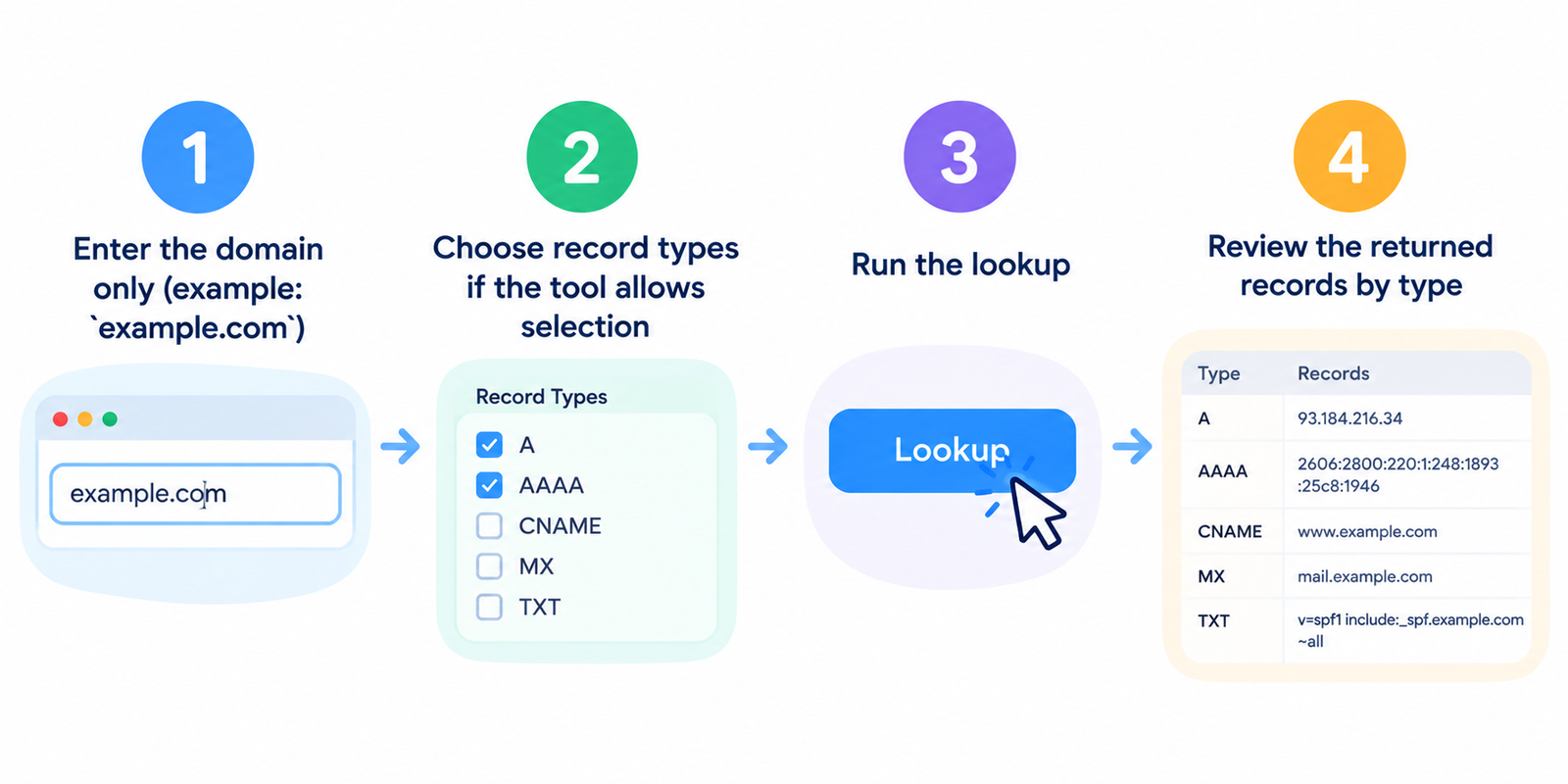
Our Find DNS Records tool lets you query any domain's DNS records in one place. Enter a domain, choose the record types you want (A, MX, CNAME, TXT, NS, etc.), and get the results in plain text – no complicated command line, no tables.
Here are the most common record types and what they mean:
A Record (Address) – The IPv4 address of the server hosting the website. This tells you where the domain points. Multiple A records mean load balancing.
AAAA Record – Same as A, but for IPv6 addresses. Modern sites have both.
MX Record (Mail Exchange) – Where emails sent to @domain.com should go. If you see MX records pointing to Google or Microsoft, the domain uses Gmail or Office 365. If you see a small hosting provider's mail server, they likely use shared hosting email.
CNAME Record (Canonical Name) – An alias from one domain to another. For example, www.bingowebrabbit.com might be a CNAME pointing to bingowebrabbit.com. CNAMEs are also used for CDNs (like Cloudflare) or third‑party services.
TXT Record – Stores arbitrary text. Most commonly used for domain verification (Google Search Console, Facebook Domain Verify) and email security (SPF, DKIM, DMARC). A TXT record with v=spf1 shows SPF is configured.
NS Record (Name Server) – Which DNS servers are authoritative for the domain. This tells you who manages the domain's DNS – your registrar, Cloudflare, or a custom DNS provider.
SOA Record (Start of Authority) – Administrative information about the zone: the primary name server, the domain admin's email, and timing settings for refresh and retry. Rarely needed by normal users, but useful for troubleshooting.
PTR Record (Pointer) – Reverse DNS lookup: from IP address to domain name. Usually set by hosting providers. Not all domains have one.
Website owners – You moved your site to a new host. Did you update the A record correctly? Check it. If the old IP still appears, your DNS hasn't propagated yet.
Email administrators – You set up SPF and DKIM to stop spoofing. Verify your TXT records are published correctly. A missing TXT record means your emails might go to spam.
SEO professionals – Checking a competitor's DNS can reveal if they use Cloudflare (which hides origin IP) or a specific hosting provider. That intelligence helps with competitive analysis.
Security researchers – A phishing domain might have mismatched MX records or suspicious NS records. DNS lookup is often the first step in investigating a malicious site.
IT support – A user can't reach a website. You check the domain's DNS. If the A record is missing or points to a dead IP, you've found the problem.
Domain investors – You're looking at buying a domain. Check its NS records. If they point to a parked domain service, the domain might be held by a squatter. If they point to custom DNS, it might be an active site.
Step 1 – Open the Find DNS Records page on bingowebrabbit.com.
Step 2 – Enter a domain name. Use just the domain, not the full URL. Examples:
bingowebrabbit.com
google.com
example.org
Step 3 – Select which record types you want to query. By default, we fetch A, AAAA, MX, CNAME, TXT, NS, and SOA. You can uncheck any you don't need.
Step 4 – Click "Look Up DNS".
Step 5 – The results appear as plain text, grouped by record type. No tables – just clear, readable output.
When you query bingowebrabbit.com for A records, you might see:
A Records for bingowebrabbit.com:
192.0.2.123
For MX records:
MX Records for bingowebrabbit.com:
10 mail.bingowebrabbit.com
For TXT records:
TXT Records for bingowebrabbit.com:
"v=spf1 include:spf.protection.outlook.com -all"
"google-site-verification=abc123def456"
For NS records:
NS Records for bingowebrabbit.com:
ns1.example.com
ns2.example.com
No JSON, no HTML tables. Just the records you asked for, one per line.
If you see no records – That record type is not configured. For example, many domains don't have AAAA records (IPv6). That's fine. But missing MX records mean the domain cannot receive email.
If you see multiple records – Some types allow multiple entries. MX records have priority numbers (lower is higher priority). A records can have multiple IPs for round‑robin load balancing.
If you see a CNAME – The domain is an alias. For example, www.example.com CNAME example.com. The actual IP will be whatever the target domain resolves to.
If you see "Timeout" or "Server Failure" – The domain's DNS servers may be misconfigured or unreachable. This often causes the website to be inaccessible.
Slow website loading – Check the A record. If the IP is in a different continent than your audience, consider a CDN or regional hosting.
Email not arriving – Check MX records. If they're missing or point to an old provider, fix them. Also check TXT records for SPF – a missing SPF record can cause emails to be rejected.
Domain points to wrong site – Check the A record. It might still point to an old hosting IP. DNS propagation can take 24‑48 hours after you change it.
SSL certificate errors – Sometimes the certificate is issued for www.domain.com but your A record points to the bare domain (or vice versa). DNS alone won't fix it, but checking the A/CNAME records helps you confirm the mismatch.
Domain parked or suspended – NS records pointing to parking services (like Sedo, Bodis, or registrar default) indicate the domain isn't actively used.
On Linux or macOS, you'd run:
dig bingowebrabbit.com A
dig bingowebrabbit.com MX
On Windows, you'd use nslookup. Our tool does the same thing but with a web interface. No terminal needed. No memorizing flags. You can also query multiple record types at once, which dig and nslookup don't do easily.
If you suspect DNS propagation delays, you can query a specific name server directly. In the tool, there's an optional field labeled "Name Server" – enter the authoritative NS for the domain (from the NS records) and we'll query that server directly. This bypasses local caches and shows the true current records.
No logging – We don't store which domains you look up. Each query is independent.
Rate limiting – For normal use (a few hundred queries per day), no limits. If you're a security firm querying tens of thousands, contact us for API access.
No recursive query – We query the authoritative name servers directly. This gives accurate results but may not respect your local /etc/hosts file (which is by design).
What's the difference between A and AAAA?
A is for IPv4 (like 192.0.2.1). AAAA is for IPv6 (like 2001:db8::1). Most domains still have IPv4. IPv6 is growing but not universal.
Why do I see CNAME instead of A for my domain?
If you use a CDN like Cloudflare or a service like GitHub Pages, they often set a CNAME from your domain to theirs. That's normal. The A record lives on the target domain.
Can I check subdomains?
Yes. Enter mail.bingowebrabbit.com or www.bingowebrabbit.com. The tool works for any valid domain or subdomain.
What does "NXDOMAIN" mean?
The domain does not exist. You might have typed it wrong, or the domain is not registered.
Why do some TXT records look like gibberish?
Those are often DKIM keys or verification strings. They're not meant to be human‑readable.
Is this tool free?
Yes. No signup, no hidden charges.
Let's say you suspect your competitor is using a specific email provider. You run their domain through the MX record lookup. The result shows:
MX Records for competitor.com:
10 aspmx.l.google.com
20 alt1.aspmx.l.google.com
That tells you they use Google Workspace (formerly G Suite). Now you know what email setup they're paying for.
Or you're troubleshooting why your own site loads slowly for some users. You check the A record and see it points to an IP in a data center across the country. That explains the latency. Time to move hosting or add a CDN.
DNS is the backbone of the internet. When something goes wrong – a site goes down, email stops flowing – the problem is often in DNS. Our Find DNS Records tool gives you a simple way to look under the hood.
Enter a domain. Pick the record types you need. Get plain‑text results instantly. No tables, no clutter.
Use it to verify your own DNS changes, investigate competitors, or just satisfy your curiosity about how a domain is set up.